
Welcome to UPTM ISRS User Manual
International Student Registration System
About This System
Welcome to the User Manual for the University Poly-Tech Malaysia (UPTM) International Student Registration System (ISRS). This comprehensive guide provides detailed instructions on how to use the system for all user roles.
The UPTM ISRS is a web-based system designed to streamline the entire process of international student recruitment, application, approval, and document management. The system features multiple user roles with dedicated interfaces, secure authentication, document management, and comprehensive reporting capabilities.
How to Use This Manual
Use the sidebar navigation to access specific sections for your user role. Each section provides step-by-step instructions and visual guides for all system features.
System Overview
The UPTM ISRS consists of four main modules:
- Student Module - For prospective international students to register, submit documents, select programs, process immigration forms, and make payments.
- Agent Module - For education agents to register, manage student applications, and track application statuses.
- International Office (IO) Staff Module - For university staff to review and process student applications and immigration requests.
- IT Admin Module - For system administrators to manage staff accounts, configure system settings, and oversee agent approvals.
Select your role from the sidebar to view detailed instructions specific to your needs.
Student User Guide
Instructions for international students using the ISRS
Student Registration Process
As an international student, your registration process involves multiple steps to ensure all necessary information and documents are collected.
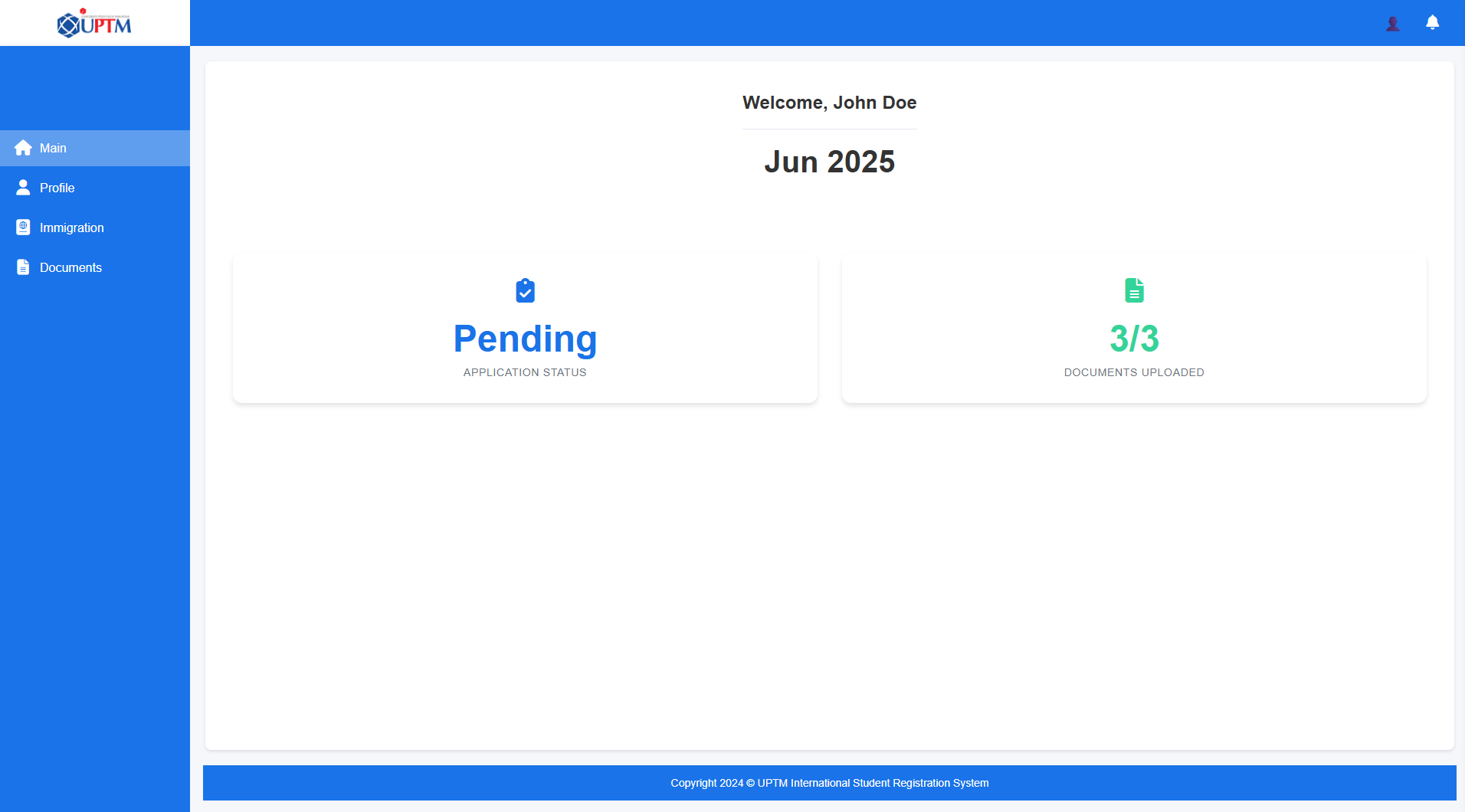
Step-by-Step Registration Guide:
- Create an Account - Visit the student registration page and fill in your basic details to create an account.
- Personal Information - Complete your personal details, contact information, and guardian information.
- Educational Qualifications - Enter your previous educational qualifications and upload relevant certificates.
- Program Selection - Browse and select up to 5 program preferences based on your interests and qualifications.
- Document Upload - Upload required documents including passport copies and academic certificates.
- Payment - Process the application fee payment using the secure Stripe payment gateway.
Student Dashboard
After successful registration and login, you will access your personal student dashboard.
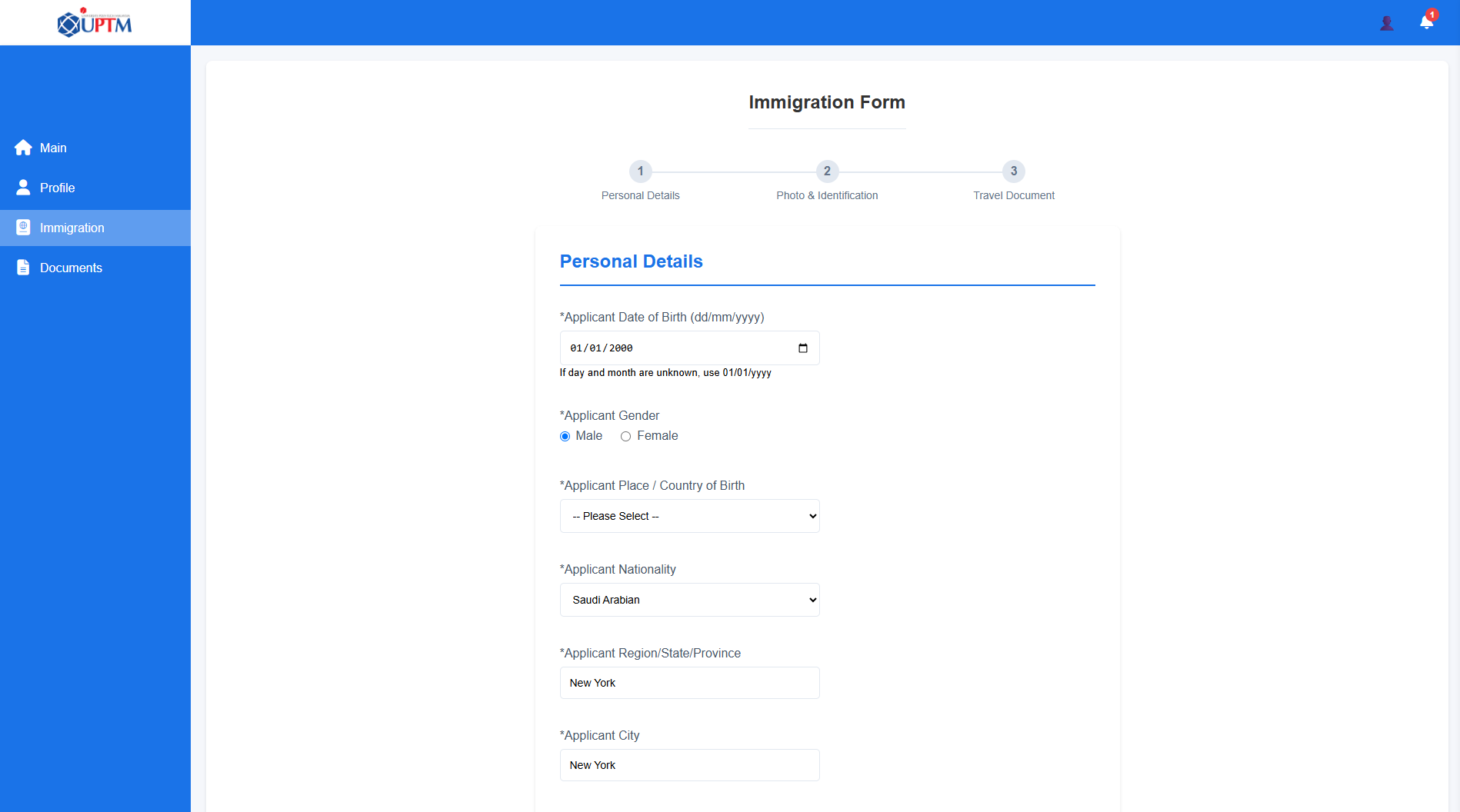
Your dashboard provides access to:
- Profile Management - View and update your personal information
- Document Management - Upload and manage your documents
- Program Selection - View your selected programs
- Immigration Processing - Submit your immigration application
- Offer Letter - Download your offer letter when approved
Immigration Application
Once your application is approved, you'll need to submit immigration information for visa processing.
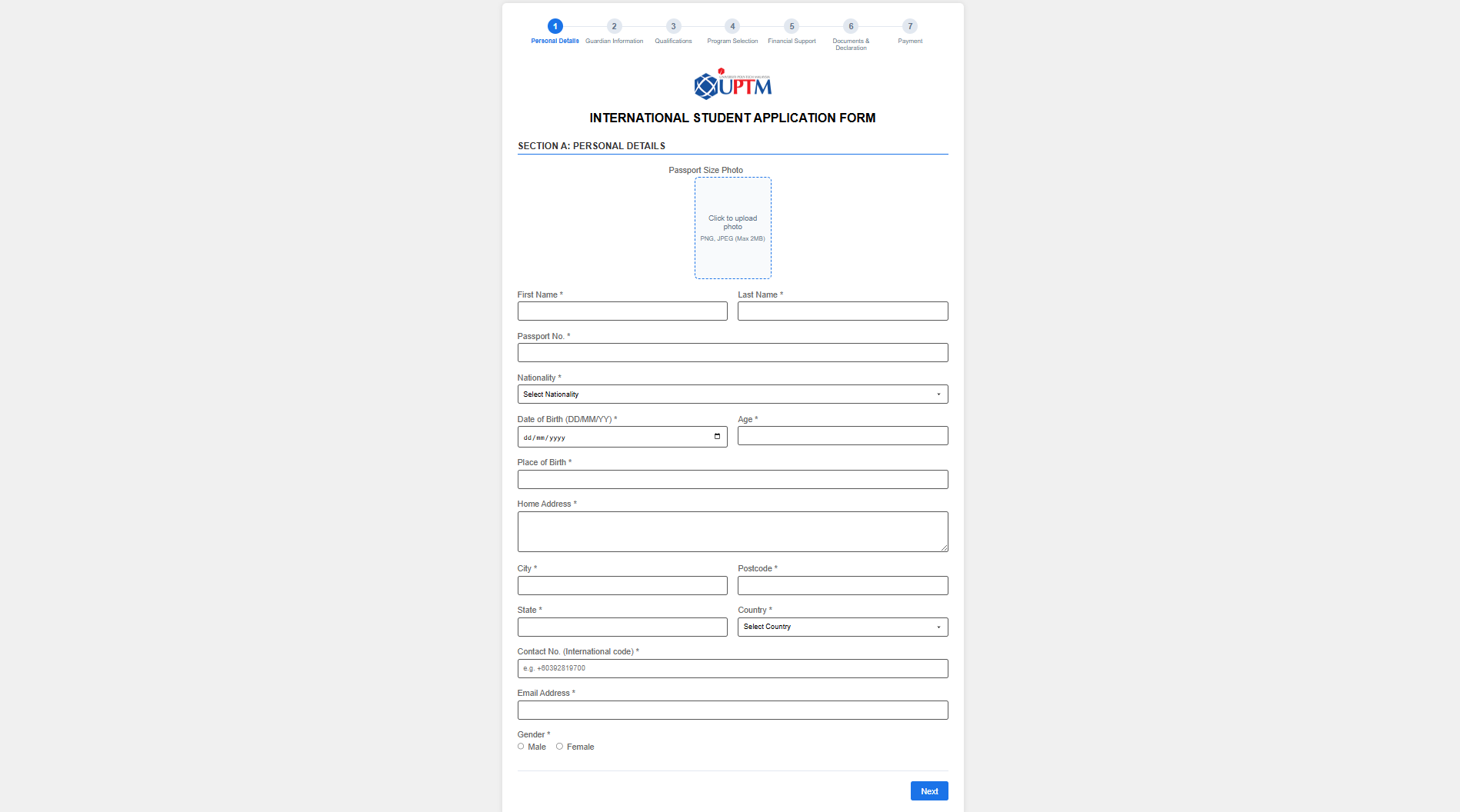
To submit your immigration application:
- Navigate to the Immigration section in your dashboard
- Complete all required fields in the immigration form
- Upload a recent passport-sized photograph
- Submit the form for review by the International Office
Agent User Guide
Instructions for education agents using the ISRS
Agent Registration
As an education agent, you must register and be approved before you can manage student applications.
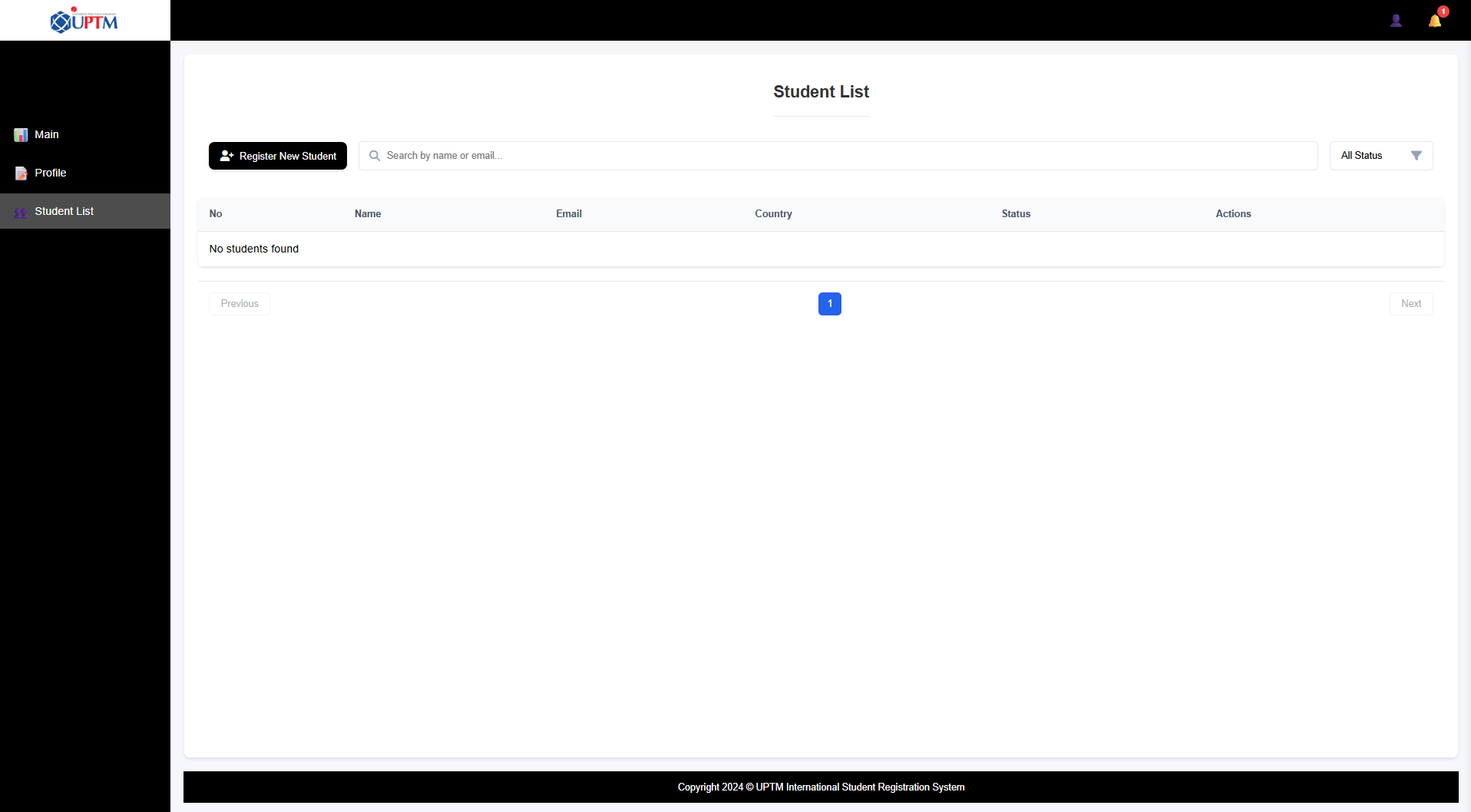
Registration Steps:
- Create an Account - Visit the agent registration page to create your initial account.
- Company Profile - Provide details about your agency, including business registration information.
- Document Upload - Submit required documentation such as business licenses and agency credentials.
- Approval Process - Wait for the IT Admin to review and approve your registration.
- Account Activation - Once approved, your account will be activated for use.
Important Note
Your agent application will be reviewed by the IT Admin. This process may take several business days to complete. You will receive an email notification once your account is approved.
Agent Dashboard
After approval, you can access your agent dashboard to register student applications.
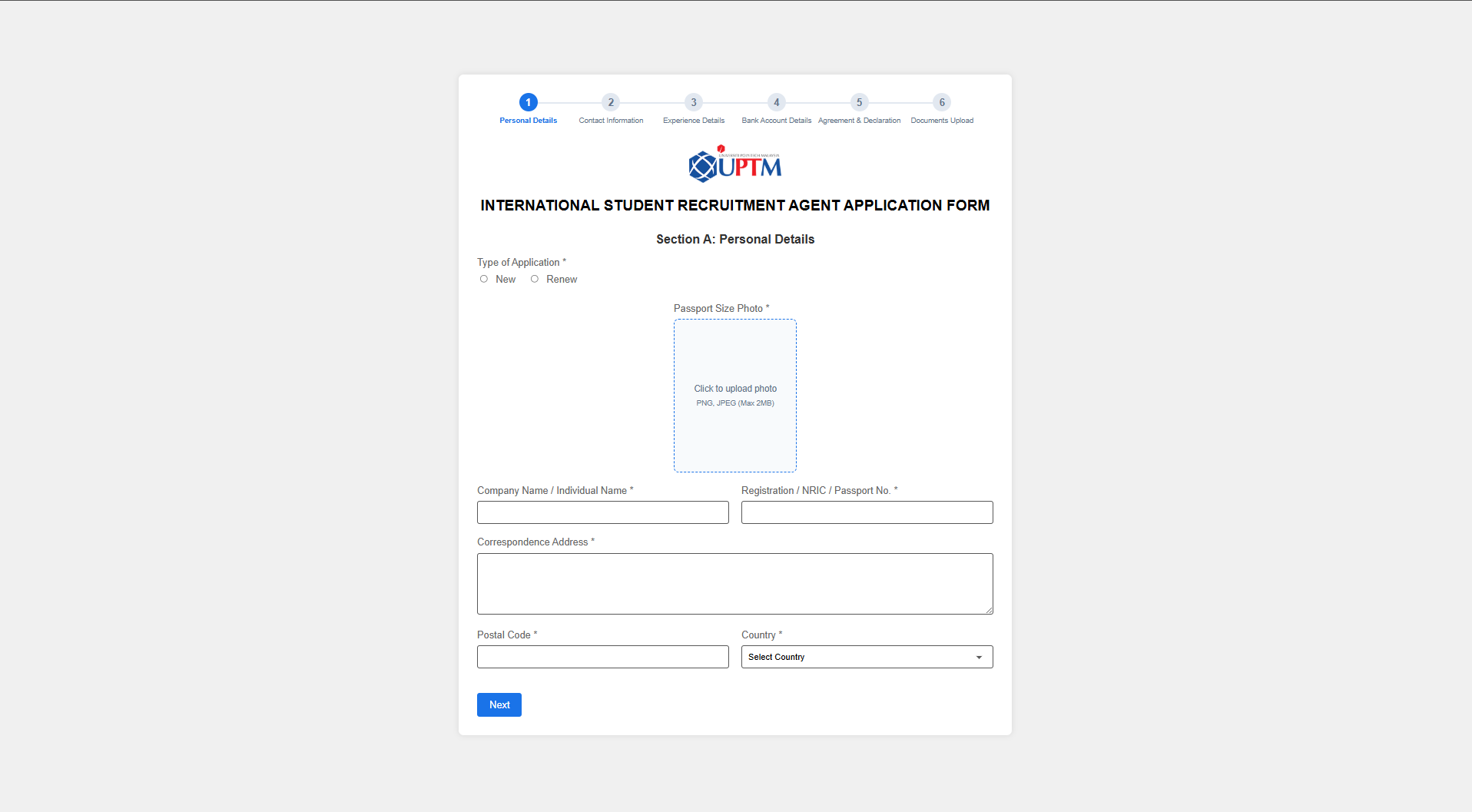
Your dashboard provides access to:
- Profile Management - Update your agency information
- Student Registration - Register new students under your agency
- Student Management - View and manage your registered students
- Application Tracking - Monitor the status of student applications
- Notifications - Receive updates about student applications
Registering Students
As an agent, you can register students directly through your dashboard.
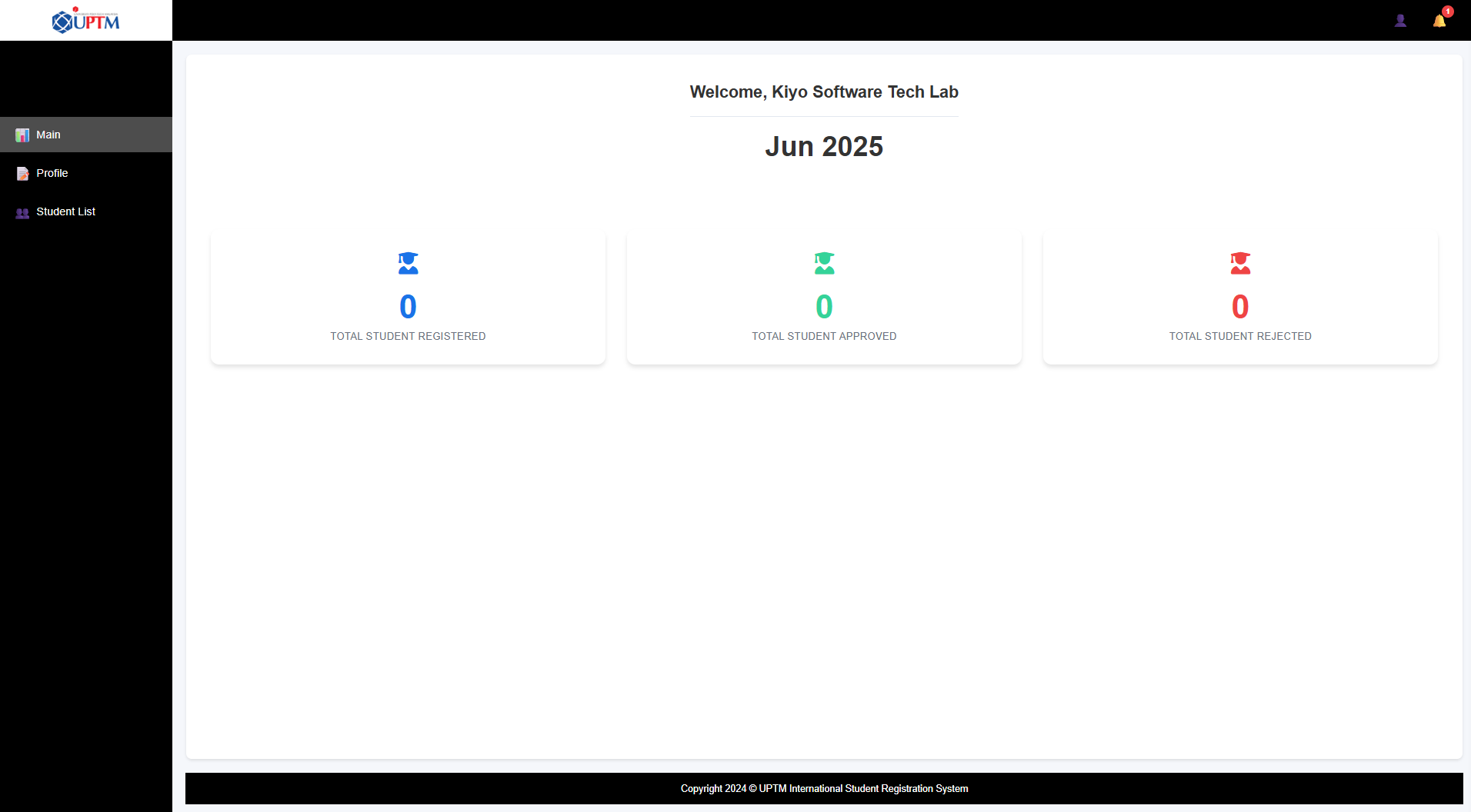
To register a new student:
- Click on "Register New Student" in your dashboard
- Complete the student's personal information
- Enter educational qualifications and upload certificates
- Select program preferences
- Upload required documents
- Submit the application for review
Once submitted, you can track the application status through your dashboard.
International Officer User Guide
Instructions for International Office staff using the ISRS
Staff Login and Dashboard
As an International Office (IO) staff member, you will use the staff login portal to access your dashboard.
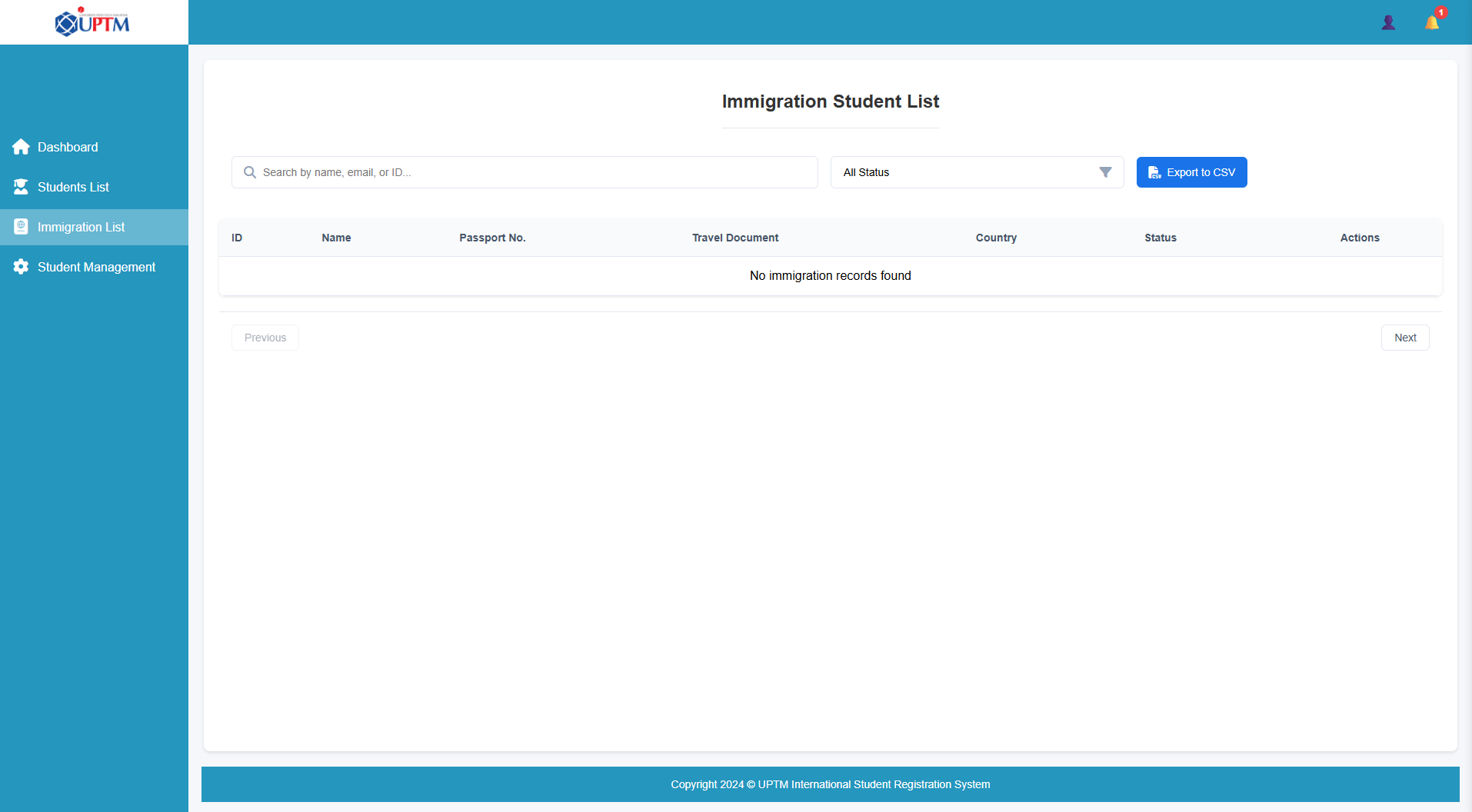
Your dashboard provides access to:
- Student Applications - Review and process new student applications
- Immigration Processing - Review student immigration applications
- Reports and Statistics - View application statistics and reports
- Notifications - Receive alerts about new applications and updates
Reviewing Student Applications
One of your primary responsibilities is to review and approve/reject student applications.
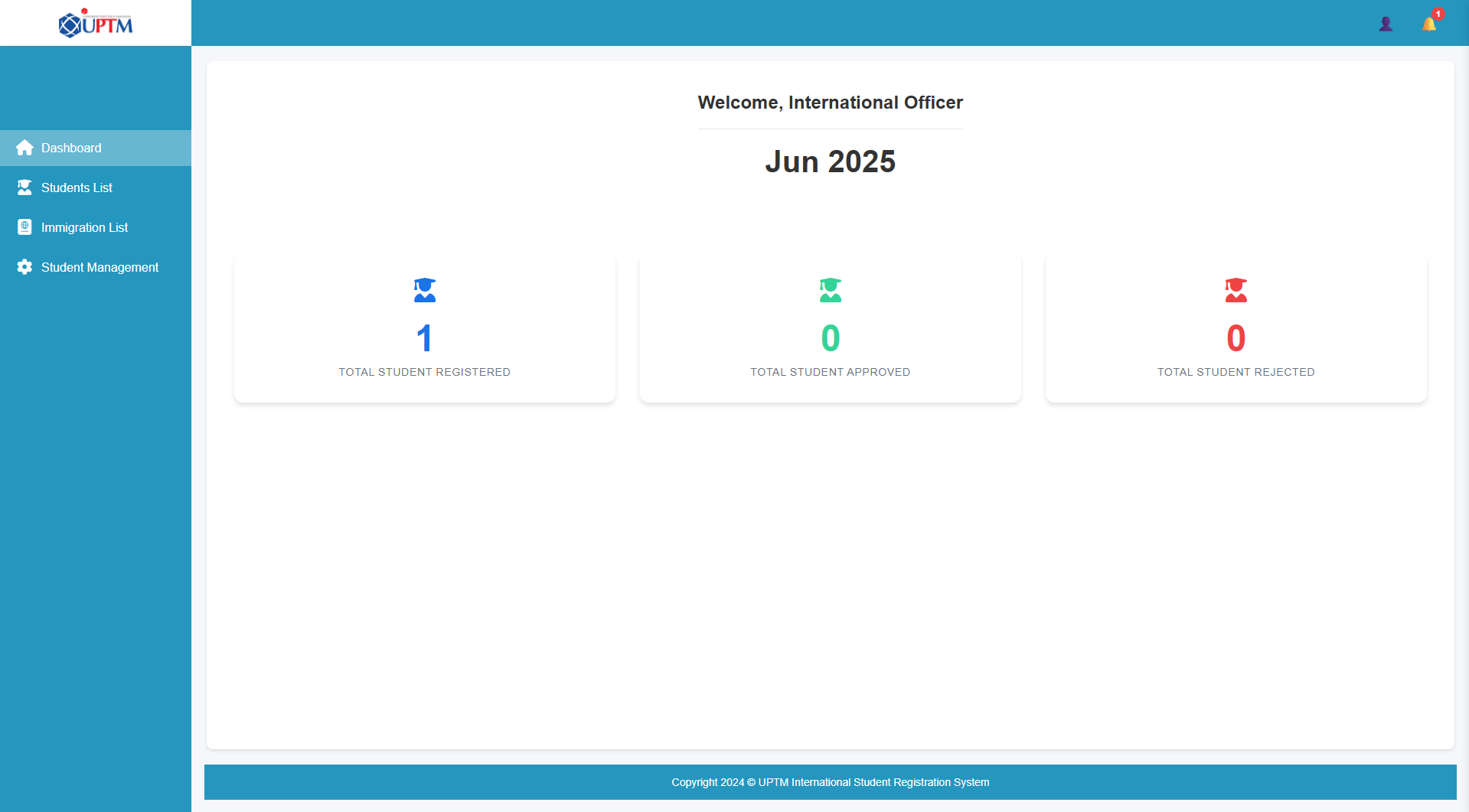
To review a student application:
- Access the "Student Applications" section from your dashboard
- Click on a pending application to view details
- Review personal information, educational qualifications, and uploaded documents
- Verify the authenticity and completeness of the application
- Click "Approve" or "Reject" and provide comments if necessary
- Submit your decision to update the application status
Application Status Notifications
When you approve or reject an application, the system automatically notifies the student and their agent (if applicable) about the decision.
Managing Immigration Applications
For approved students, you will need to process their immigration applications.
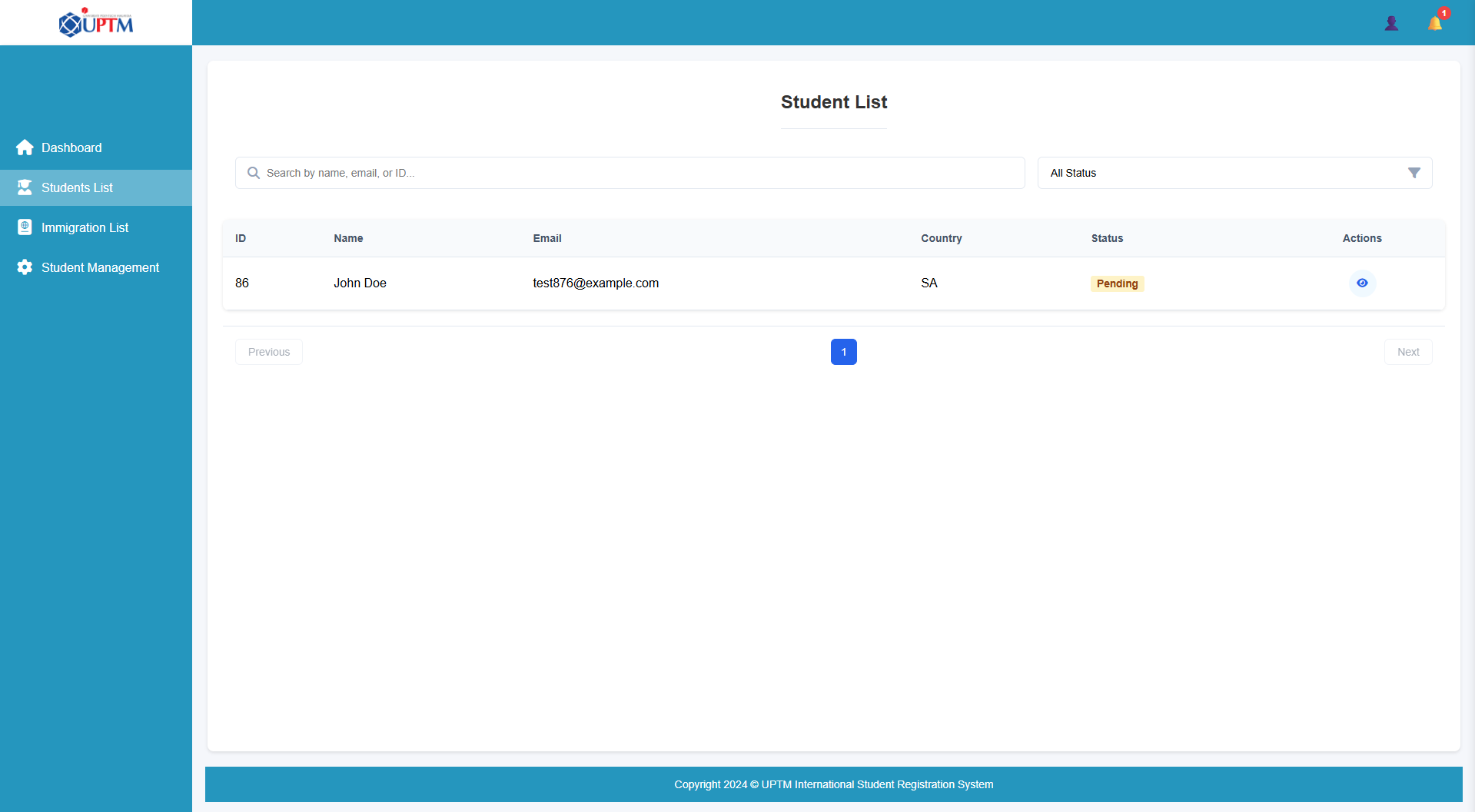
To process immigration applications:
- Navigate to the "Immigration Processing" section
- Select a pending immigration application to review
- Verify the submitted information and photograph
- Click "Approve" to confirm the application is valid
- Use the "Export Data" function to extract information for external visa processing
IT Admin User Guide
Instructions for IT administrators managing the ISRS
Admin Dashboard
As an IT Admin, you have the highest level of access to manage the entire system.
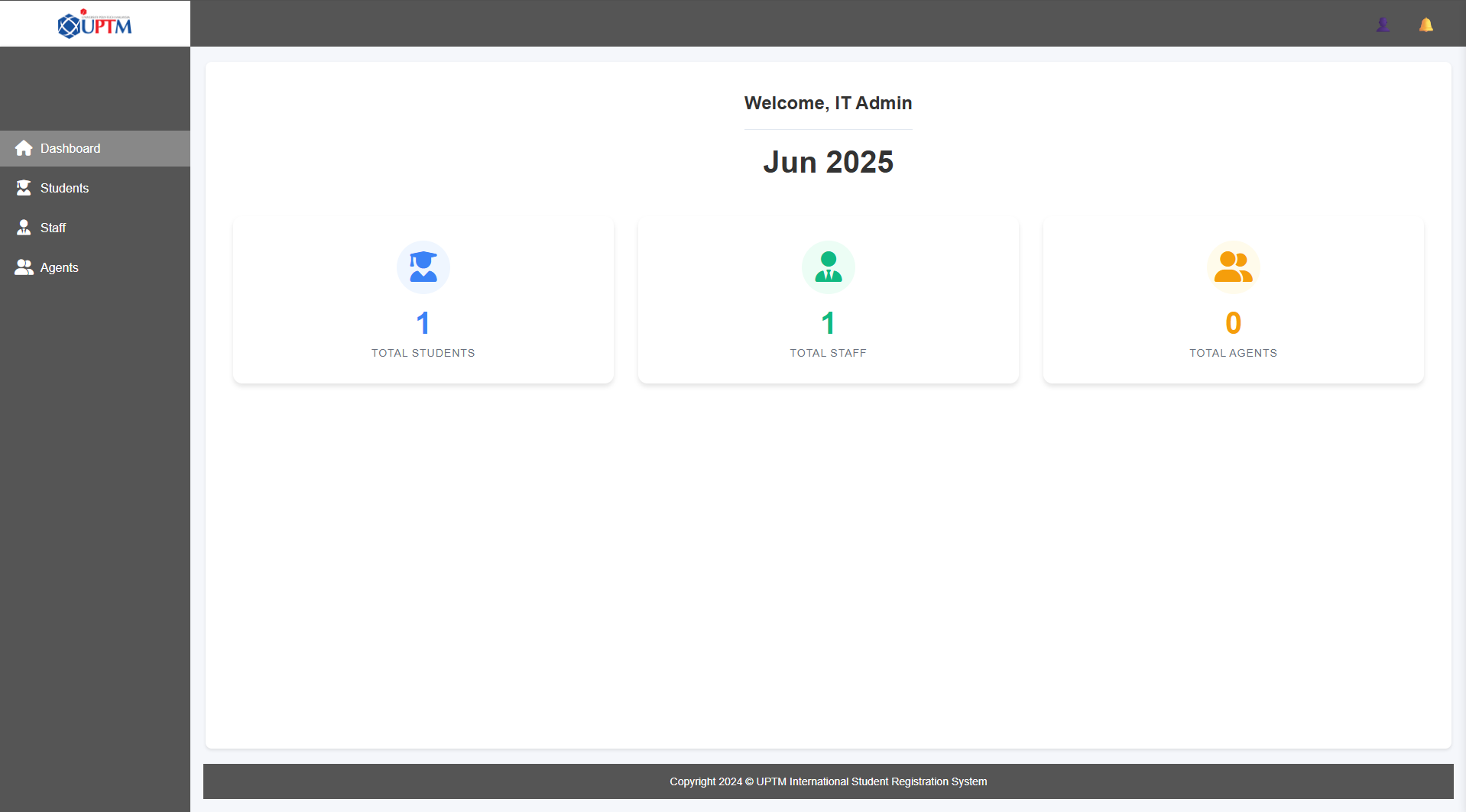
Your dashboard provides access to:
- Staff Management - Add, edit, or remove staff accounts
- Agent Management - Review and approve agent applications
- Student Management - Oversee student records and handle special cases
- System Settings - Configure application parameters and features
- Coupon Code Management - Create and manage payment discount codes
- Statistics and Reports - View system-wide statistics
Managing Staff Accounts
You are responsible for creating and managing staff accounts for the International Office.

To manage staff accounts:
- Navigate to the "Staff Management" section
- Click "Add New Staff" to create a new account
- Enter the staff member's name, email, and role
- Set a temporary password
- To edit a staff account, select the account and use the appropriate action buttons
Approving Agent Applications
All agent registrations require your review and approval before they can access the system.
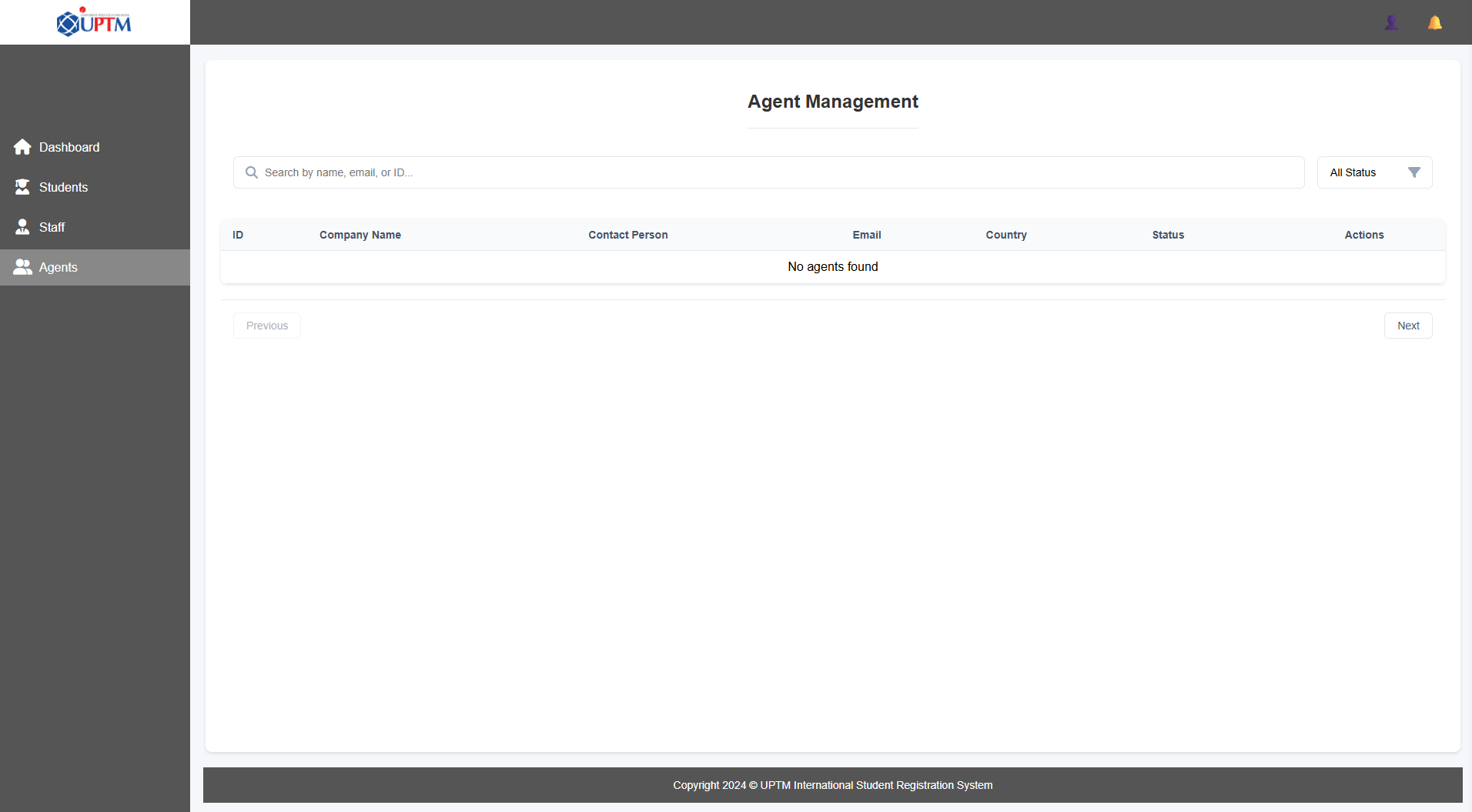
To review agent applications:
- Access the "Agent Management" section from your dashboard
- Click on a pending agent application to review details
- Verify the agent's company information and documentation
- Click "Approve" or "Reject" based on your evaluation
- Provide comments explaining your decision if necessary
Verification Best Practices
Always verify agent credentials through external sources when possible. Check business registration numbers with appropriate government databases and confirm the agency's reputation before approval.
System Configuration
You can configure various system settings to control the behavior of the ISRS.

Key configuration options include:
- Registration Controls - Enable/disable student and agent registration
- Payment Settings - Configure payment link and options
- Profile Modification - Allow/restrict student profile modifications
- Archive Settings - Configure student archiving options
To modify system settings:
- Navigate to the "System Settings" section
- Locate the setting you wish to change
- Toggle the switch or enter the new value as appropriate
- Click "Save Changes" to apply the new settings